
If you're wiring up checkout for a SaaS, a digital download, or a React Native app, Apple Pay usually shows up as the thing everyone wants to “get in later.” In its January 2026 recap, Apple reported that Apple Pay generated more than $100 billion in incremental merchant sales worldwide in 2025. I'd plan it into checkout from the start.
The core work in apple pay integration sits behind the surface, in device checks, merchant validation, token handling, and whether your PSP or your own backend takes on decryption.
Register a Merchant ID with the certificates your PSP needs, show the button only on devices that can pay, and send the authorized token to a processor that supports Apple Pay.
For a direct web integration, your backend requests a merchant session from Apple. Native apps use PassKit and your Merchant ID entitlement, with no browser validation step.
Why Apple Pay Integration Matters in 2026
A checkout page can look polished and still lose the sale if Apple Pay is buried too late in the flow.
Apple's January 2026 services recap reported Apple Pay availability in 89 markets, with more than 11,000 bank and network partners and more than 20 local payment networks.
If you sell subscriptions, digital goods, or products with a short decision path, Apple Pay belongs in your default checkout set in eligible markets.
Practical rule: if your audience is on iPhone and you do not surface Apple Pay early, you are making them type card details for no good reason.
A clean-looking button is only part of the work. Apple breaks the integration into presenting the Apple Pay option, merchant validation, payment authentication, and payment processing, and that split is useful because it separates the customer-facing UI from the trust chain behind it. The frontend is straightforward. The validation session, token handoff, and decryption path are where integrations usually fail (Apple's merchant integration guidance).
For teams that ship payments alongside subscriptions, entitlements, receipts, and renewal logic, the payment method should not become the entire system.
That is why a broader payment management system often sits around Apple Pay instead of beside it.
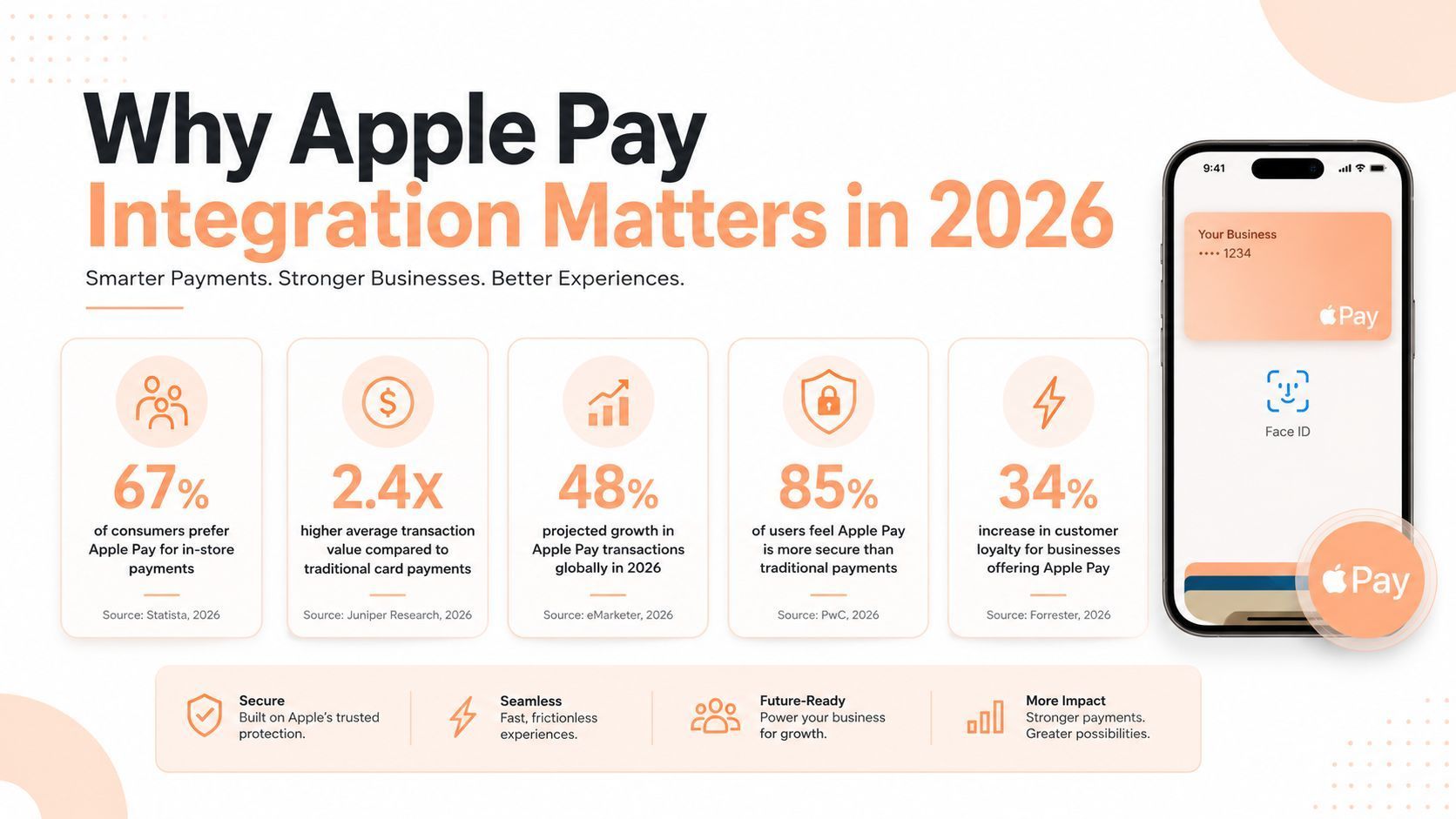
The takeaway is direct. In 2026, skipping Apple Pay is a checkout decision with a clear downside. The rest of the work is wiring it in without creating dead ends, compliance surprises, or a polished flow that still loses users at the last step.
Prerequisites Before You Write Any Apple Pay Code
Before you touch client code, the server side needs to be ready. Apple requires that pages showing the Apple Pay button be served over HTTPS, with a valid SSL certificate and TLS 1.2 or newer. That sounds basic, but teams still miss it when the button is embedded on a staging domain, a preview environment, or a subdomain that doesn't inherit the same certificate setup (Apple guidance).
On the web, merchant validation runs through your own backend. Safari fires the validation event, your checkout client calls your endpoint, and your server requests a merchant session from Apple.
That endpoint must be reachable by your checkout client and sit behind your normal access controls.
Your server also needs outbound TLS access to Apple, so don't wait until the end of implementation to discover your network policy blocks it.
Check the validation URL the client sends against Apple's documented list of allowed domains before calling it. Forwarding whatever URL arrives turns your endpoint into an open relay.
Confirm the processor before the front end
The PSP question comes first, not last. Apple's guidance says you should confirm that your payment service provider supports Apple Pay before you expose the flow, and that matters because support varies by channel. Web and in-app integrations don't always share the same request shape, the same entitlements, or the same backend responsibilities (Apple guidance).
Certificate setup depends on that choice, because your PSP usually generates the signing request and holds the processing certificate. Each setup step names who normally does it:
| Step | Where | Who usually does it | What you get |
|---|---|---|---|
| 1. Join the Apple Developer Program | Apple Developer | You | Access to merchant IDs and certificates |
| 2. Confirm PSP and region support | PSP Apple Pay docs | You | Your channel, selling and buyer countries covered |
| 3. Create a Merchant ID | Certificates, Identifiers & Profiles | You | A registered merchant identity |
| 4. Generate a CSR | PSP dashboard | PSP | A signing request for the certificate |
| 5. Create the payment processing certificate | Apple Developer, then PSP | You, using the PSP's CSR | Your PSP can decrypt tokens |
| 6. Register and verify web domains | Apple Developer or PSP dashboard | You or PSP | Association file served under /.well-known/ |
| 7. Create a merchant identity certificate | Apple Developer | You, if you validate yourself | Your backend can request merchant sessions |
| 8. Enable the Apple Pay capability | Xcode | You, native apps only | App entitlement tied to your Merchant ID |
| 9. Assign certificate renewal | Team calendar | You or PSP | Certificates renewed before they expire |
Hosted PSP integrations often take steps 4 to 7 off your plate. What matters before launch is that every step has a named owner.
A good pre-flight check is simple enough to run in a stand-up:
- HTTPS is live everywhere: Every page that can show the Apple Pay button is served securely.
- Every setup step has an owner: Each step in the setup table is assigned to you or your PSP, including renewal.
- Validation path works: Your checkout client can reach your validation endpoint, and your server can call out to Apple.
- PSP support is confirmed: Your processor explicitly supports Apple Pay for the channel you're shipping.
- PCI scope is understood: You know who decrypts the token before any code ships.
Wiring Up Apple Pay on the Web and in iOS Apps
Web and native Apple Pay share the sheet, the Face ID or passcode step, and the token handoff, but they run different lifecycles. Build the client flow for the channel you're shipping rather than copying Safari's callbacks into an iOS app.
On the web, render only what the device can actually use
On the web, don't show the button just because the page loaded. Apple recommends using ApplePaySession.canMakePayments() so unsupported devices never get a dead-end checkout path (Apple merchant integration guidance). That check isn't cosmetic. It prevents support pain and avoids teaching users to tap a button that can't complete.
Merchant validation starts when you call session.begin() inside the button's click handler. Safari fires onvalidatemerchant, your client sends the validation URL to your backend, and your server requests a merchant session from Apple.
Return that session to the page and call completeMerchantValidation() before the shopper can authorize. If the endpoint is slow, private, or misrouted, the sheet stalls even though the visible UI looks correct.
A minimal web session, created inside the click handler, looks like this. The two routes are your own backend endpoints:
const request = {
  countryCode: 'US',
  currencyCode: 'USD',
  supportedNetworks: ['visa', 'masterCard', 'amex'],

  merchantCapabilities: ['supports3DS'],
  total: { label: 'Your Company', amount: '19.00' },
};

const session = new ApplePaySession(3, request);

session.onvalidatemerchant = async (event) => {
  const res = await fetch('/apple-pay/validate', {
    method: 'POST',
    headers: { 'Content-Type': 'application/json' },

    body: JSON.stringify({ validationURL: event.validationURL }),
  });
  session.completeMerchantValidation(await res.json());
};

session.onpaymentauthorized = async (event) => {
  const res = await fetch('/apple-pay/pay', {
    method: 'POST',
    headers: { 'Content-Type': 'application/json' },

    body: JSON.stringify({ token: event.payment.token }),
  });
  const { approved } = await res.json();

  session.completePayment(
    approved ? ApplePaySession.STATUS_SUCCESS : ApplePaySession.STATUS_FAILURE
  );
};

session.begin();
In native iOS, the PassKit path is cleaner but not simpler
Inside iOS, the common path runs through PassKit and PKPaymentAuthorizationController. The request object carries the transaction details, and you configure shipping and contact fields there so the sheet asks only for what you need.
That matters for digital goods, where unnecessary fields just add friction.
In an App Store app, though, App Review Guidelines 3.1.1 requires In-App Purchase for digital content and subscriptions unlocked inside the app.
Guideline 3.1.3(e) sends physical goods and services consumed outside the app to methods like Apple Pay.
Storefront exceptions for external purchase links exist in some markets, and none of them make Apple Pay a general substitute for In-App Purchase.
A checkout your buyer completes on the web follows the Safari path above instead.
For an eligible flow, a minimal request and controller look like this, with sendToBackend standing in for your own API call:
import PassKit

let request = PKPaymentRequest()
request.merchantIdentifier = "merchant.com.example.app"
request.countryCode = "US"
request.currencyCode = "USD"
request.supportedNetworks = [.visa,.masterCard,.amex]

request.merchantCapabilities =.threeDSecure
request.paymentSummaryItems = [
 PKPaymentSummaryItem(label: "Your Company", amount: NSDecimalNumber(string: "19.00"))
]

let controller = PKPaymentAuthorizationController(paymentRequest: request)
controller.delegate = self
controller.present()

// PKPaymentAuthorizationControllerDelegate
func paymentAuthorizationController(
 _ controller: PKPaymentAuthorizationController,
 didAuthorizePayment payment: PKPayment,

 handler completion: @escaping (PKPaymentAuthorizationResult) -> Void
) {
 sendToBackend(payment.token.paymentData) { approved in

 completion(PKPaymentAuthorizationResult(status: approved?.success:.failure, errors: nil))
 }
}

func paymentAuthorizationControllerDidFinish(_ controller: PKPaymentAuthorizationController) {
 controller.dismiss()
}
A small but important operational habit is to keep the client flow narrow. You're wiring a controlled handoff into Apple's sheet, then waiting for the token.
The integration rhythm should feel boring by the end, and that's a good sign. Side by side, the two paths differ in setup far more than in what the shopper sees:
| Stage | Web (Safari) | Native iOS |
|---|---|---|
| API | ApplePaySession | PKPaymentAuthorizationController |
| Button shown when | ApplePaySession.canMakePayments() returns true | PKPaymentAuthorizationController.canMakePayments() returns true |
| Setup proof | Verified domain | Apple Pay entitlement with Merchant ID |
| Certificates | Merchant identity, if you validate yourself, and payment processing | Payment processing only |
| Sheet opens on | session.begin() | controller.present() |
| Merchant validation | Backend requests session from Apple | None in the app |
| Shopper authenticates | Face ID, Touch ID, or passcode | Face ID, Touch ID, or passcode |
| Token handoff | Encrypted token to backend, then processor | Encrypted token to backend, then processor |
| Channel sent to PSP | Marked as web payment | Marked as in-app payment |
Handling the Apple Pay Token on Your Server
The token is the part you have to get right. Apple Pay uses a device account number rather than your customer's actual card number.
After the shopper approves the payment with Face ID, Touch ID, or the device passcode, Apple Pay returns an encrypted token for that payment.
The token carries payment data, a transaction identifier, and a one-time transaction cryptogram, which your PSP uses when it authorizes the charge. Your job is to deliver it intact to whoever decrypts it.
With API-based processing, your processor defines the payload. Adyen's flow requests paymentMethods with the correct countryCode, amount.currency, and channel.
Adyen uses Web for Safari and iOS for in-app flows. It then takes the applePayToken in a /payments request after stringifying and Base64-encoding the token.
That encoding step is a requirement of the cited Adyen API flow, not a universal Apple Pay processing rule. Use your processor's documented token field and serialization requirements when you build the payment request.
For an API-based integration, the token and authorization result make this round trip:
- The client posts the authorized token to your backend, along with the order reference. Your server takes the amount from its own records, not from the client.
- Your backend builds the request your PSP documents and sends it. If the PSP supports idempotency keys, include one tied to the order.
- The PSP returns its authorization result: approved, declined, or an error.
- Your backend returns the authorization outcome. On the web, the client maps it to the status passed to
completePayment. In iOS, it supplies aPKPaymentAuthorizationResultto the authorization completion handler, then dismisses the controller inpaymentAuthorizationControllerDidFinish.
Timeouts need care. If the PSP call times out, look the payment up by its order reference or idempotency key before you retry, because the first attempt may have gone through.
For a PSP that supports idempotency keys, reuse the same key according to its retry rules. This lets the processor recognize the original request instead of treating the retry as a new payment.
Choose who decrypts the token is the real design choice
The biggest backend decision is who does the decryption. If your PSP handles it, your PCI scope is usually narrower and your implementation is simpler. If you decrypt it yourself, you take on the security controls, key handling, and compliance burden that come with it, which is a very different engineering responsibility.
| Option | Who Decrypts | PCI Scope Impact | Best For |
|---|---|---|---|
| PSP-managed decryption | Payment processor | Lower operational burden | Most SaaS teams, smaller engineering groups |
| Merchant-managed decryption | Your backend | Higher compliance and key-management burden | Teams with PCI maturity and custom payment infrastructure |
That table is the decision tree in plain language. If you don't need to own decryption, don't volunteer for it.
The server-side rule is simple and easy to forget when debugging. Never log the raw token, and don't keep it longer than processing needs.
Your PSP's security and retention requirements set that limit. Read them before you add any token field to a database table or queue.
For observability, log request IDs, non-sensitive status codes, and processor error details with sensitive fields filtered out. A full PSP response can still carry payment data, so filter it before it reaches your logs.
For teams building webhook-driven systems, token handling also needs to line up with your downstream payment events. In webhooks for site integrations, grant access from the confirmed payment event and keep the token out of event logs and debugging dumps.
Testing Apple Pay Across Devices and Browsers
Apple Pay testing breaks in the boring places. Sandbox looks straightforward in docs, then real hardware, sign-in state, browser support, and validation routing start to matter. Treat testing as a matrix problem, not a single happy-path demo.
Sandbox needs the right device state
Create a Sandbox Tester in App Store Connect under Users and Access, then use real Apple Pay-supported hardware.
For Apple Pay sandbox testing on iPhone or iPad, sign out of your regular iCloud account and sign in with the sandbox tester account.
Set the device region to one supported for Apple Pay sandbox testing, then add Apple's supported sandbox cards to Wallet.
Apple's sandbox instructions include the supported regions and card details.
Configure your PSP's test environment separately. Its generic test-card numbers are not Apple Pay Wallet sandbox cards.
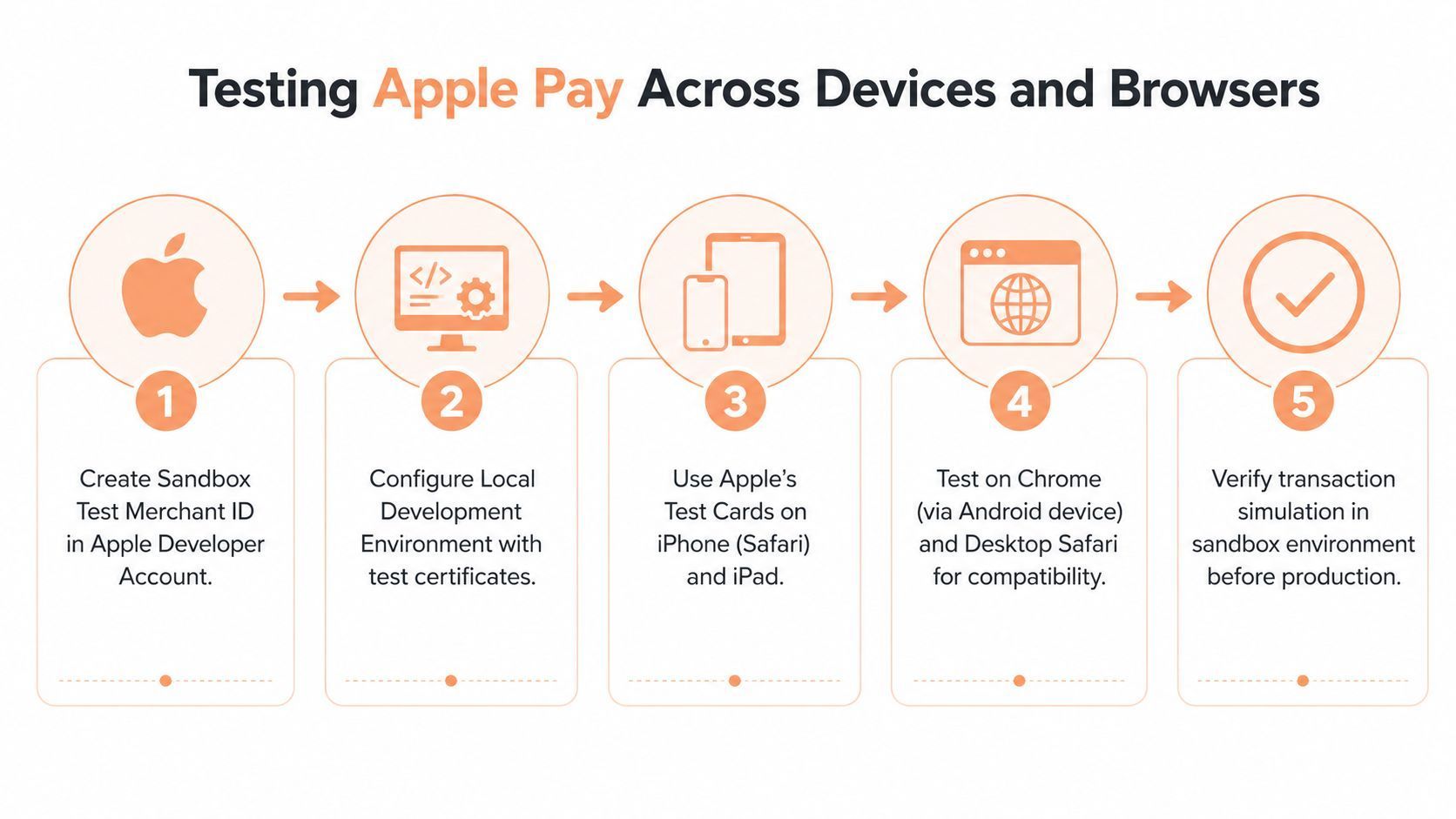
Test Safari on macOS and iPhone, plus native flows on iPhone and iPad.
Include the code-based third-party-browser flow introduced in WWDC24.
The compatible browser displays a code. The shopper scans it with an iPhone or iPad running iOS 18 or iPadOS 18 or later.
The browser needs WebSocket support. This flow works with participating merchants in supported markets, as Apple documents.
Keep processor tests repeatable: trigger a predictable sandbox response and verify the authorization path end to end.
The test-card workflow covers processor testing. Use Apple's sandbox cards for Wallet setup.
Common test errors usually point to one broken layer
The highest-frequency failures are easy to classify once you know what to look for:
ApplePaySessionis undefined: Check API availability, HTTPS, and whether your browser integration uses ApplePaySession or a PSP-managed flow.- Merchant validation returns 404: Identify the request returning 404 and inspect its route. Investigate connection failures separately.
- Unsupported merchant capabilities: Compare request capability values with Apple's API requirements and the capabilities your PSP supports.
- Sheet opens but authorization fails: Inspect cancellation or Wallet authentication first, then the authorization callback and PSP decline or token error.
Practical rule: Find the failed Apple Pay stage, then inspect its callback or processor response before changing the integration.
Before launch, run a controlled live payment with a real card using your PSP's live-testing procedure.
Confirm the authorization result in the PSP dashboard before treating the checkout's visible success state as proof of payment.
Conversion Pitfalls Most Apple Pay Guides Ignore
The conversion work starts before the sheet opens. Shoppers who first meet Apple Pay on the last screen have already done the typing it was meant to save.
The sheet also has to show a company the shopper recognizes. Both gaps create avoidable drop-off, and both are fixed in your own checkout setup.
Surface it before the last checkout screen
If the Apple Pay option only appears at the end, you've already forced users through unnecessary friction. Put it in the cart or on the product page for eligible checkout flows.
That helps subscriptions and digital goods sold on the web, where the customer often knows what they want before they're asked to fill in a form.
The merchant name in the sheet is the shopper's check that they're paying the right company. On the web, the sheet shows the label on your total line, so set it to the business name buyers know.
Send that same name as displayName when you request the merchant session. In iOS, the label on your last PKPaymentSummaryItem appears as the "Pay" line.
Test that the sheet shows the expected name, amount, and currency. When the sheet shows a name users don't recognize, they hesitate, and hesitation is a conversion tax. The same name-recognition problem shows up on hosted checkout layouts for SaaS before the sheet even opens.
Recurring billing needs transparency
Apple also added a Preauthorized Payments view in recent releases, where shoppers review recurring charges (Apple merchant integration guide). If you sell subscriptions, the checkout should tell buyers exactly what they're authorizing:
- Amount: what each renewal costs, in the buyer's currency.
- Interval: monthly, yearly, or your custom cadence.
- Trial or intro terms: how long they last and when the full price starts.
- Management: where buyers change or cancel the subscription.
Don't assume the token from a one-time payment sets up renewals. Renewal billing depends on the recurring setup your PSP documents for Apple Pay, so confirm it supports that before you build on it.
On the web, Apple Pay takes those terms through recurringPaymentRequest on the payment request. managementURL points buyers to where they manage or cancel:
recurringPaymentRequest: {
  paymentDescription: "Pro plan",
  regularBilling: {
    label: "Pro plan",
    amount: "9.99",

    paymentTiming: "recurring",
    recurringPaymentIntervalUnit: "month"
  },
  managementURL: "https://example.com/account/billing"
}
Add trialBilling when you offer a trial. In native apps the equivalent is PKRecurringPaymentRequest, used only in flows the App Store payment rules allow.
Make the cross-device handoff clear
Before the code appears, tell shoppers what comes next: scan it with their iPhone or iPad and confirm there.
Use the same merchant name on the page as in the payment sheet, so the device they scan with shows the company they just saw.
Use Apple Pay like a conversion surface, not a checkbox. That means:
- Show it early: Offer it in the cart or on the product page for eligible flows, before the final confirmation step.
- Check the merchant name: Test that the sheet shows your business name, the amount, and the currency you expect.
- Clarify recurring charges: Show the amount, interval, any trial terms, and where buyers cancel, and confirm your PSP supports Apple Pay renewals.
- Explain the code handoff: Tell shoppers in compatible third-party browsers that they'll scan a code and finish on their iPhone or iPad.
Troubleshooting and Pre-Launch Checklist
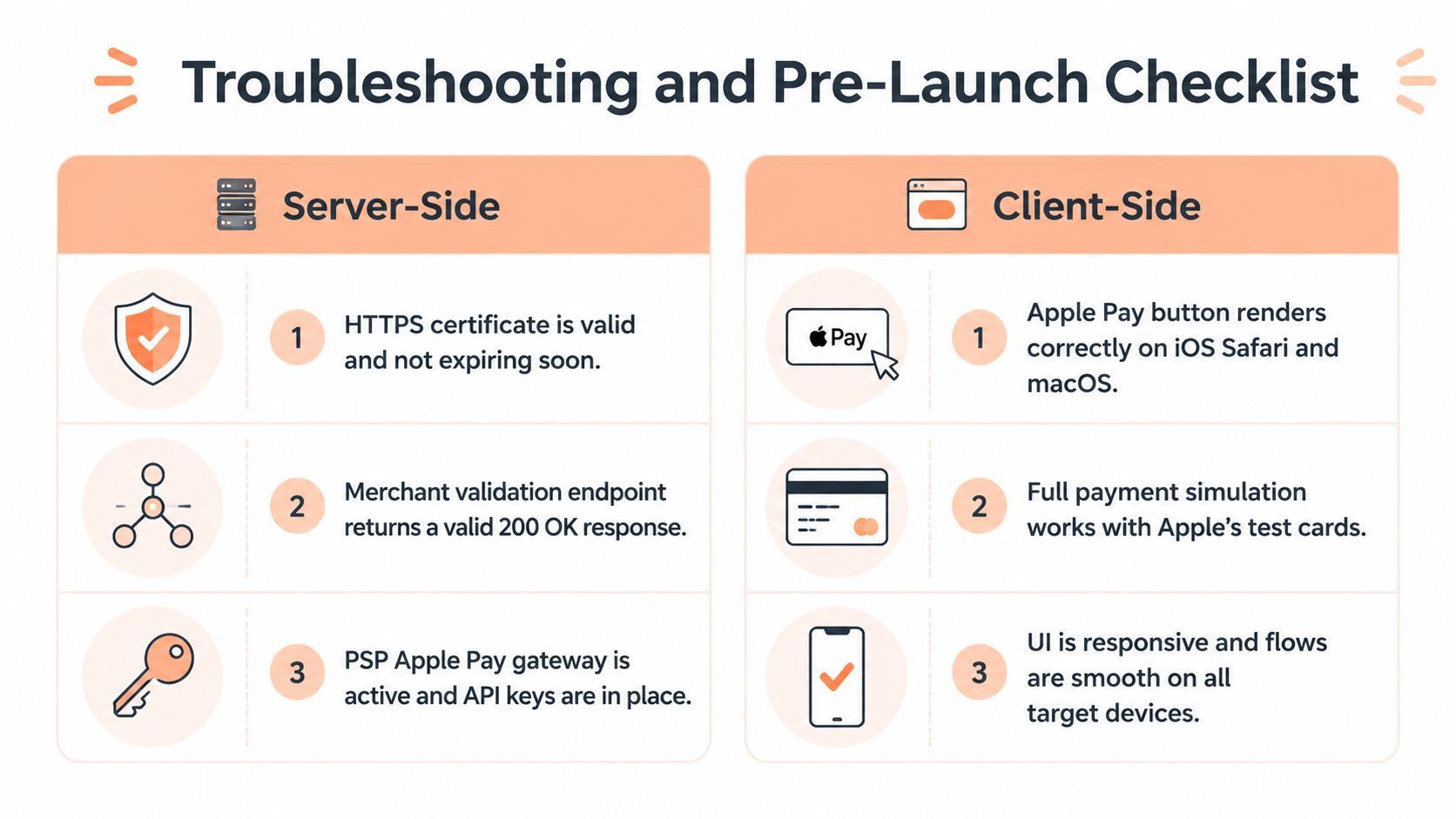
Server-side checks
-
HTTPS is valid and current: The Apple Pay page is secured and the certificate isn't broken.
-
Merchant validation completes: The checkout client reaches your access-controlled endpoint, and the backend reaches Apple's merchant-session service.
Validate the destination URL against Apple's allowed hosts before requesting a session. Confirm the client completes the returned merchant session.
-
PSP support is active: Apple Pay is enabled in the gateway and the merchant account is configured correctly.
-
Decryption ownership is assigned: Someone on the team knows whether the PSP or your backend handles it.
Client-side checks
-
Button only appears on supported devices: Unsupported users never see a dead end.
-
Merchant ID and capabilities are correct: The app or web domain matches the Apple setup.
-
Shipping and contact fields are intentional: You're not asking for data you don't need.
-
Merchant identity is correct: Test the expected merchant name, amount and currency in the Apple Pay sheet.
Web validation uses
displayName. Native checkout uses the merchant label in the final payment summary item.
Token and conversion checks
- Raw tokens aren't logged: Observability excludes sensitive payloads.
- The token path works end to end: Your PSP receives the Apple Pay token in its documented field and format and confirms the authorization result.
- Apple Pay is visible before final checkout: Users don't discover it too late.
- Fallback copy is clear: iOS 18 browser handoff doesn't confuse the shopper.
For a missing web button, inspect HTTPS and ApplePaySession.canMakePayments(). In native iOS, inspect the integration's PassKit availability check.
For validation failures, separate checkout-client routing errors from backend-to-Apple request failures.
For payment failures, inspect the authorization callback and PSP response to locate the failed stage.
Let Creem Handle the Apple Pay Stack
For SaaS and digital product teams, the final decision is whether to build all of this yourself or collapse the stack into one layer.
With Creem as merchant of record, Creem is the legal seller (see the Creem introduction). It collects and remits VAT, GST, and sales tax, issues invoices, and handles fraud and chargebacks.
Your team still delivers and supports the product. If your app grants access after payment, you still build the webhook handler that does it, and income tax on your business stays with you.
If you're planning an Apple Pay rollout for a subscription product or digital download sold on the web, Creem gives you a single place to handle checkout, Apple Pay, subscriptions, and tax without stitching together separate payment and compliance tools. Your hosted checkout can run on your own verified domain with your logo and colors.
If you would rather collapse the stack, try Creem and put Apple Pay in front of your buyers without building the token path or filing the tax on each sale.
Apple Pay Integration FAQ
Does Apple process or hold Apple Pay payments?
No. Apple Pay passes an encrypted payment token from the shopper's device, and your payment processor authorizes and settles the payment.
Does Apple charge merchants a fee for Apple Pay?
No. Apple doesn't charge merchants for accepting Apple Pay online. Your PSP's normal processing fee applies to each Apple Pay charge.
Can I accept Apple Pay without a PSP that decrypts the token?
Yes, if you decrypt Apple Pay tokens yourself with your own payment processing certificate. Decryption alone doesn't move money, so you still send the payment data to a processor and carry the PCI burden.
Does Apple Pay work in Chrome or Firefox?
Yes, when the third-party browser supports WebSockets and checkout is through a participating merchant in a supported market. The browser shows a code that the shopper scans with an iPhone running iOS 18 or later, or an iPad running iPadOS 18 or later (Apple support).
Can I use Apple Pay for subscriptions?
Yes, for eligible flows. Apple Pay accepts recurring payment requests that show the amount and billing interval, and your PSP has to support recurring Apple Pay charges.
Digital subscriptions sold inside an iOS app follow App Store payment rules.